Cue Mode
Cue mode lets you prepare the next look without touching what's on screen — then cut to it the instant you're ready. No blank gaps, no surprises.
Why cue?
Normally, clicking a pattern changes the projector immediately. But say you have one pattern playing and you want to get the next one ready now without switching yet. Cue mode stages that pattern in a hidden renderer, so it's already warmed up and waiting.
Entering cue mode
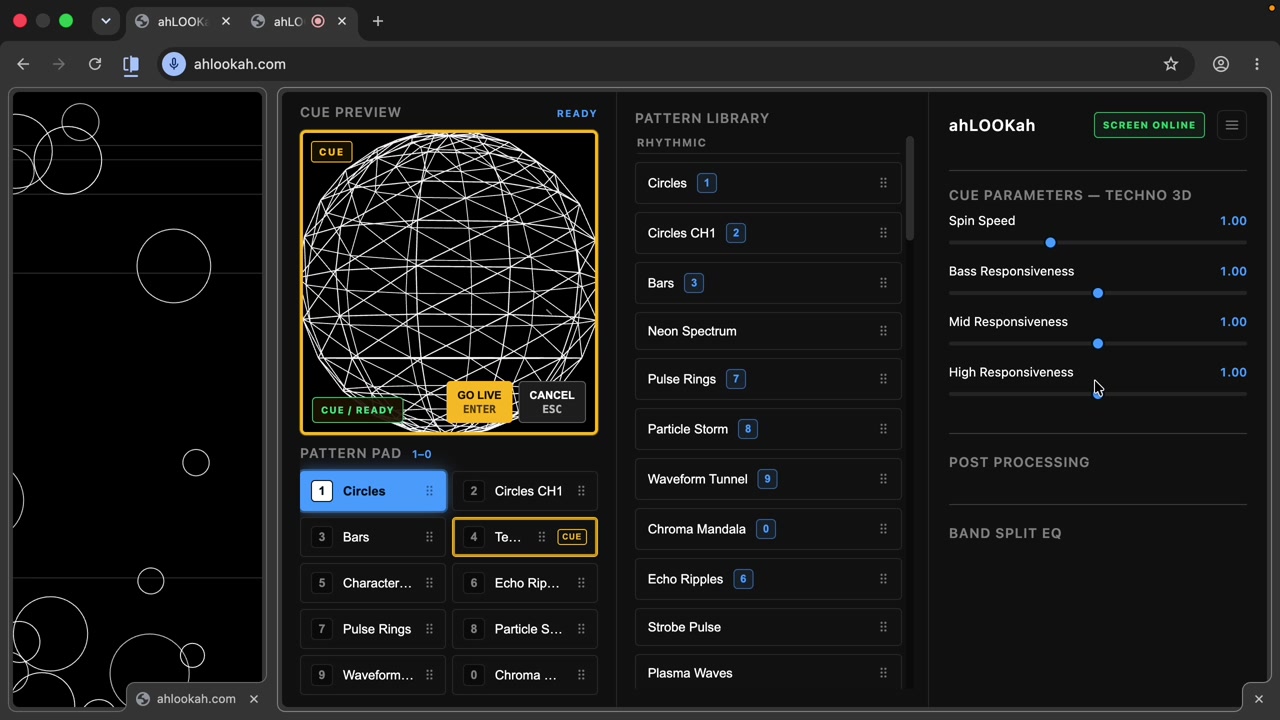
Shift-click a pattern in the pad or library (or press Shift + a number key). The app drops into cue mode — the preview switches to an amber CUE PREVIEW with GO LIVE and CANCEL controls.
Editing the cue
While cueing, any parameter changes apply only to the cued preview — your live projector output is untouched. The preview title changes to CUE PREVIEW, and the parameters panel switches to CUE Parameters.
Taking it live
When you're happy, press Enter (or click GO LIVE). The cued pattern cuts to the projector on the next frame. Change your mind? Press Esc (or CANCEL) and live output carries on as if nothing happened.
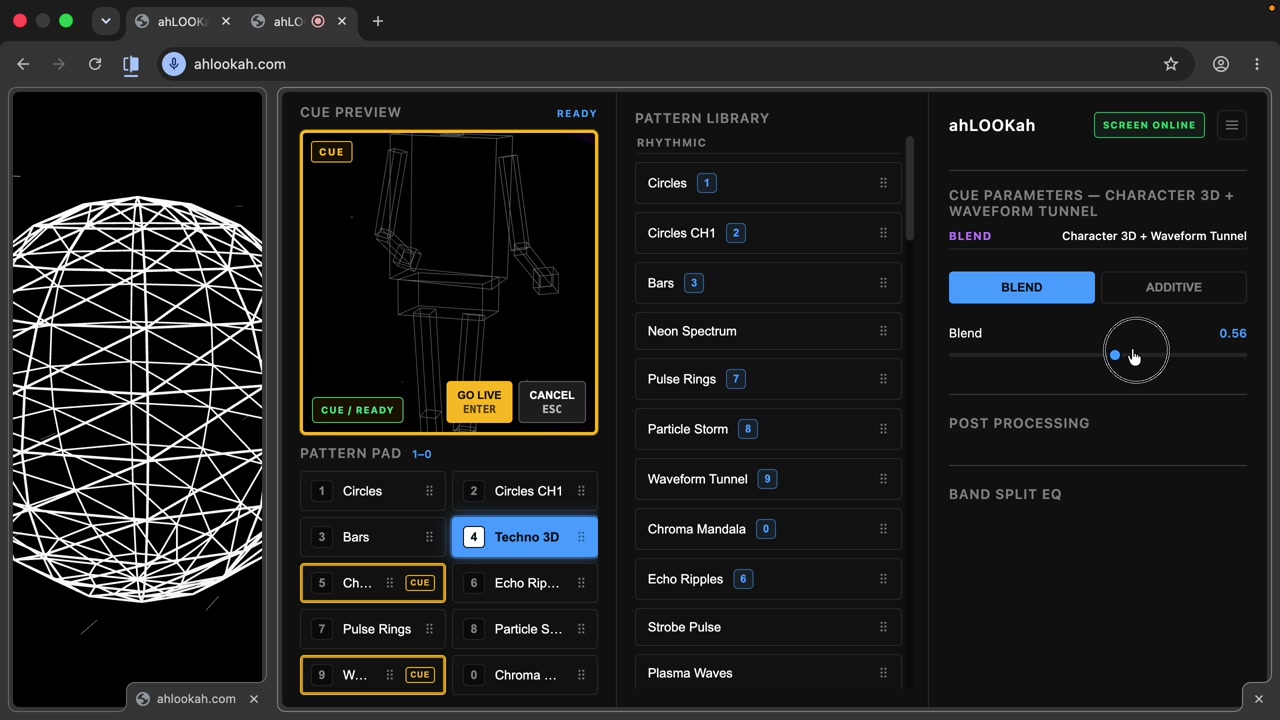
Cueing a blend
You can cue two patterns at once, too. Hold Shift and press two number keys — for example Shift+9 then 5 — to stage a blend, then set the blend mode and level before taking it live.