Media Patterns
Media patterns put your images and videos on the output as fullscreen layers — no code, no uploads. Pick a file, and it appears in the pattern library next to the built-in effects.
Loading a file
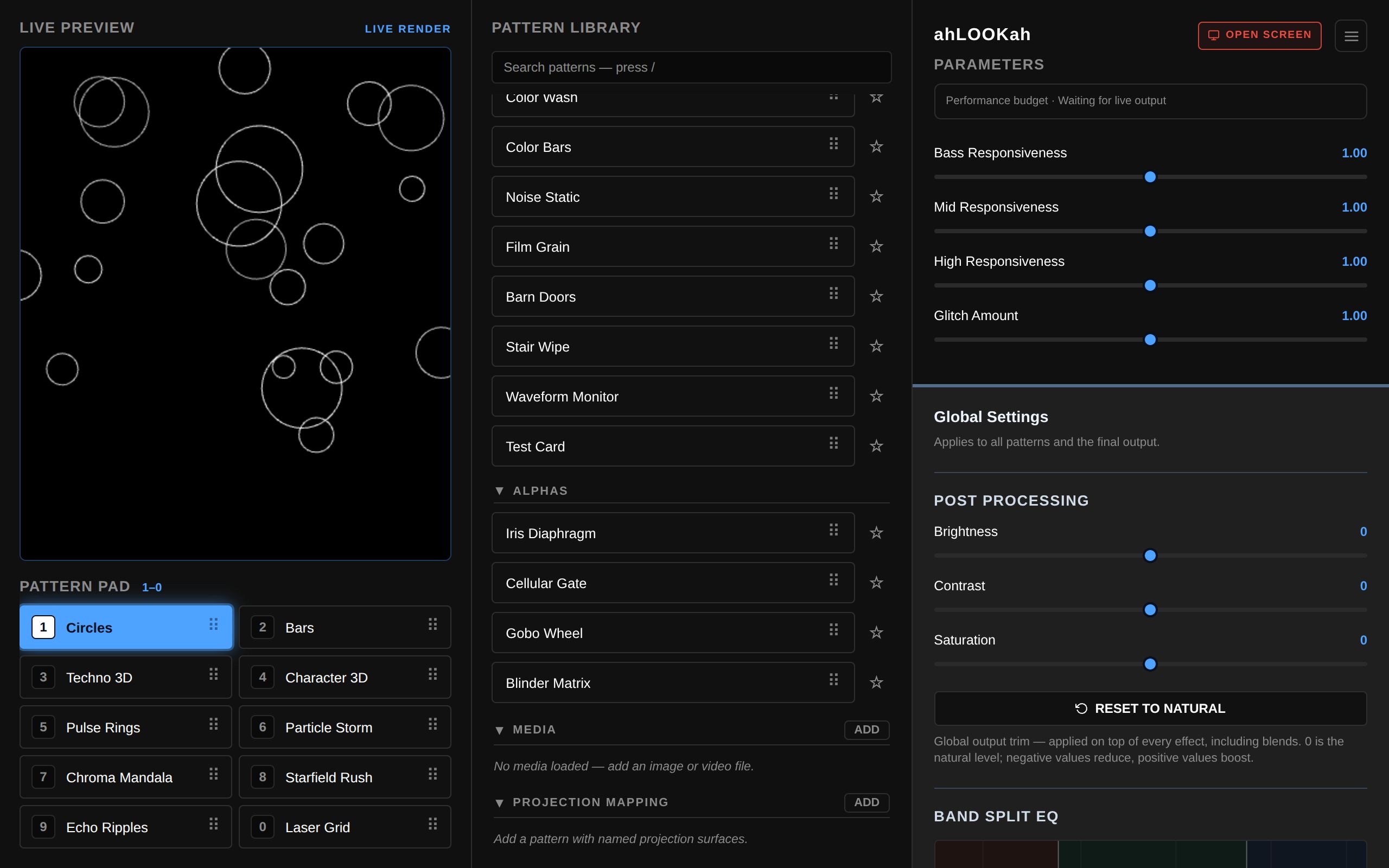
Scroll to the bottom of the pattern library and find the Media group. Press Link Folder and pick the folder that holds your images and videos, then click ADD in the group header and choose a file (one per pick). Each file becomes its own pattern, named after the file, and it behaves like any other library item: click it to play it live, drag it to a pad slot, or use it as a mapping source.
ADD is the group’s only action, and it stays disabled until a Media folder is linked — a media pattern is a reference into that folder. Linking a folder (and pressing Refresh) never loads it: a media pattern is created only by ADD, and a saved project brings back exactly the files it recorded. A file that is deleted from the folder keeps its entry and is marked for re-linking.
The Media group is always shown — even before you add anything — so the ADD button is always within reach, with a short “Link Folder before adding media.” hint while it is disabled.
Your files stay on your computer
ahLOOKah never uploads or copies your media. A media pattern is a reference: the library stores the name and a path-equivalent file handle, and the file itself is read from disk when the pattern plays. That keeps the app's saved data tiny and your footage where it belongs.
- Chromium-based browsers (Chrome, Edge, Chromium, Opera) use the File System Access picker. The handle is remembered, so your media patterns survive reloads and app restarts, and ADD lists the linked folder’s images and videos. Chrome may ask once to re-confirm read access after a restart — see If a file can't be reached.
- Brave ships File System Access off by default, so the folder picker is missing: the Media group shows one short actionable line and a How to fix action with the copyable
brave://flags/#file-system-access-apilink. Enable it and relaunch Brave, or use one of the browsers above. - Other browsers (Firefox, Safari) expose no File System Access API, so no Media folder can be linked and the ADD button stays disabled. Already-loaded patterns still appear in the library, and if one can't reach its file later you'll see one of the messages below and can use Relink File.
Formats Images: PNG, JPEG, GIF, WebP, BMP, AVIF and SVG. Videos: MP4, M4V, WebM, MOV, MKV, AVI and OGV. Anything the browser itself can decode will play.
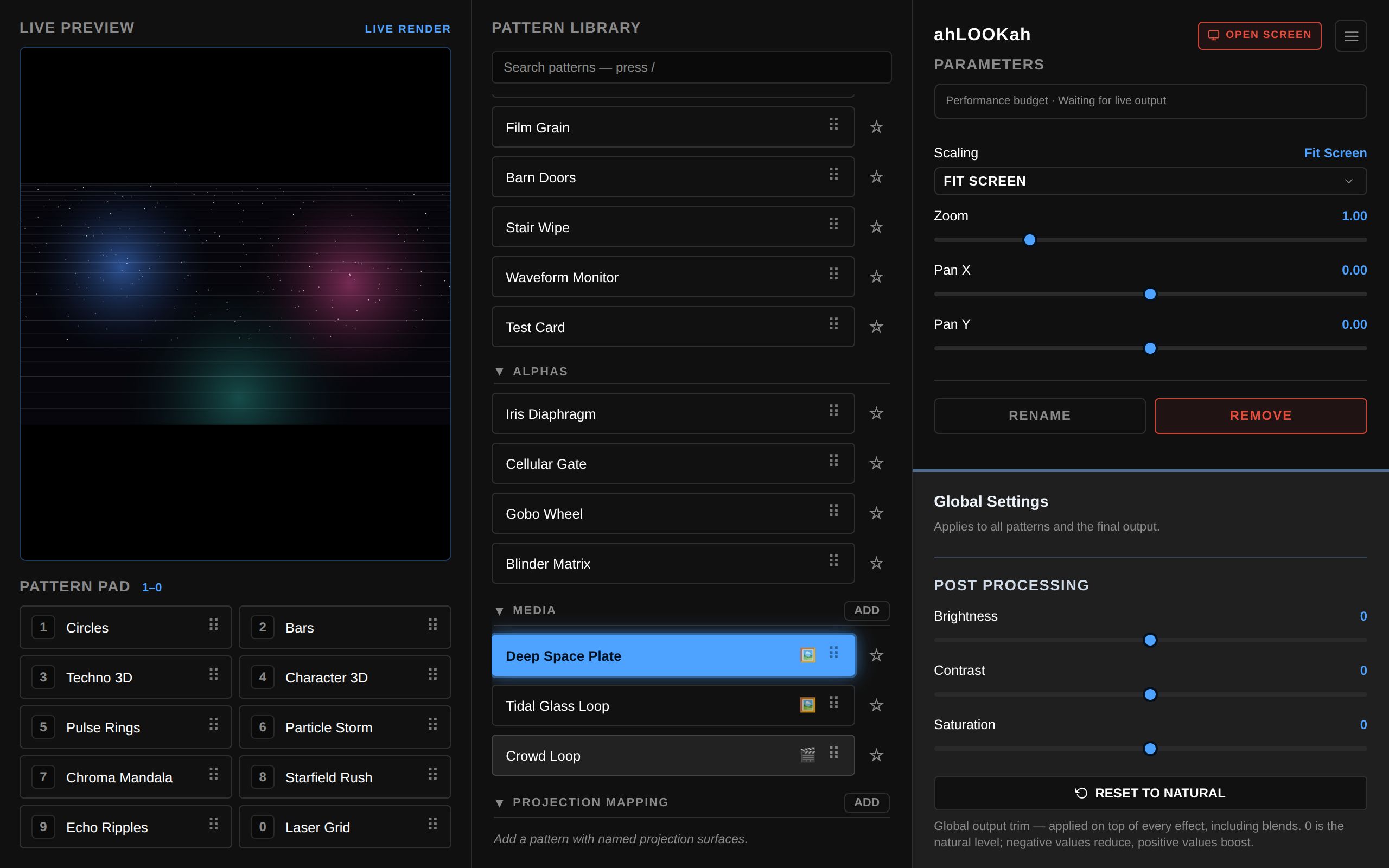
Once a file is loaded, the pattern appears in the Media group with an icon showing what it is — a picture frame for an image, a film strip for a video.
Framing the picture
Media patterns are not audio reactive — the audio never nudges them. Instead they expose framing controls so a still or a loop lands exactly where you need it on the screen:
| Control | What it does |
|---|---|
| Scaling | Fit Width, Fit Height, Fit Screen (whole picture inside the frame, letterboxed) or Fill Screen (cover the frame, cropping the overflow). Defaults to Fit Screen. |
| Zoom | Multiplies the chosen fit — push in on a detail, or pull back past the edges. |
| Pan X / Pan Y | Slides the picture across the output, up to half a frame in each direction. |
| Playback Speed | Video only. Slows a loop down or speeds it up; the file keeps looping. |
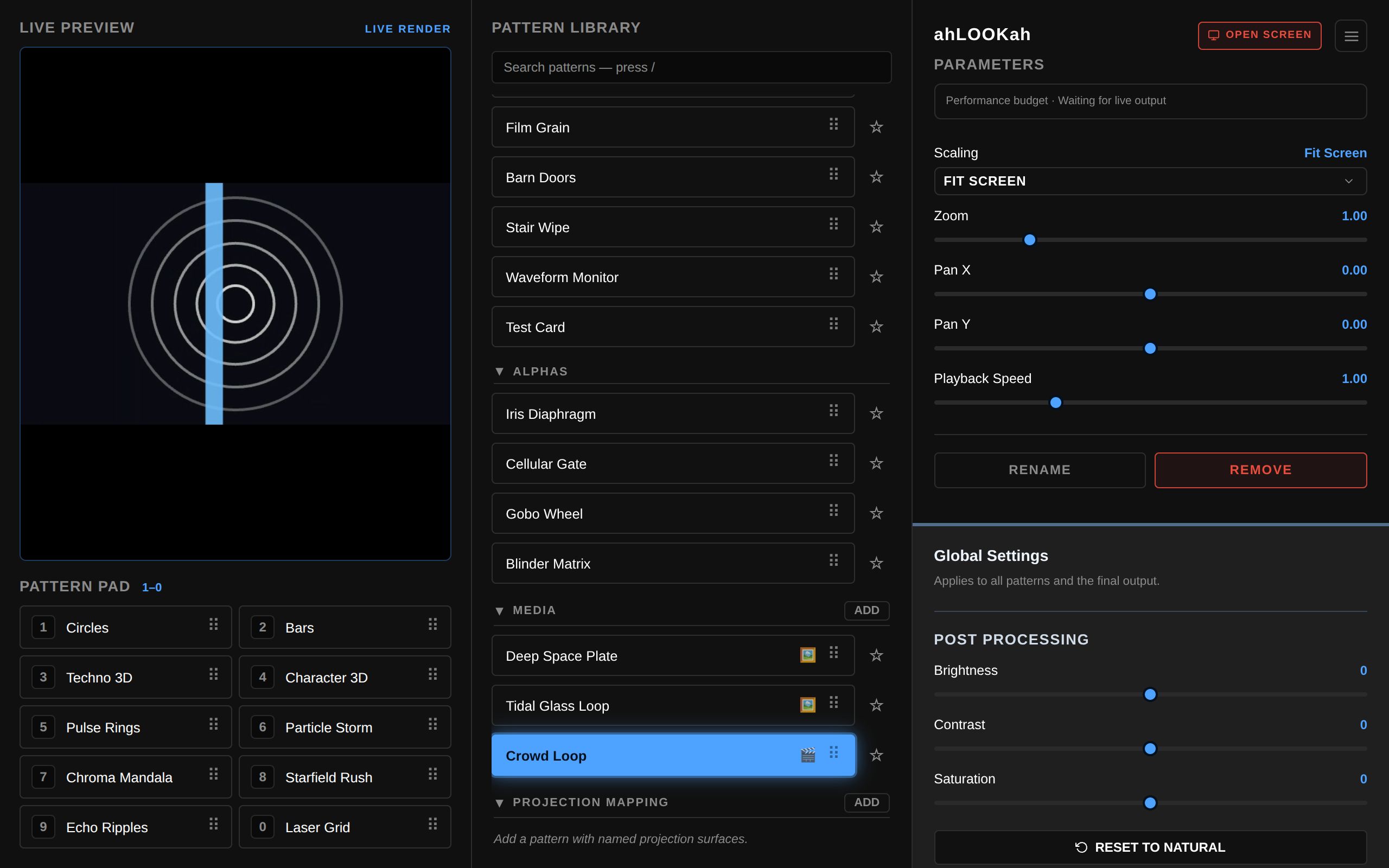
Change a control while the pattern is live and the output follows immediately, exactly like a built-in effect.
Renaming and removing
Rename changes only the label in the library — handy when several files share a similar camera name. Remove drops the pattern from the library and forgets its reference; the original file on disk is left untouched.
If a file can't be reached
Because media lives outside the app, a reference can go stale. ahLOOKah tells you exactly what happened and how to fix it:
- "Click to grant file access" — the browser needs your permission to read the file again after a restart. Click the output (or the preview) to grant it, and the pattern loads.
- "Media file not linked — use Relink File" — the file moved, was renamed, or the pattern arrived from a project saved on another computer. Select the pattern and click Relink File in the parameters panel to point it at the file again. The pattern is also marked red in the library and on the pad. The button only appears when a pattern genuinely can't reach its file.
- Missing in the mapping editor — if a projection mapping uses a media source that is no longer available, the editor flags it and the surface renders black (or transparent with Alpha Blend) until you choose a replacement.
Tip Searching the library for media narrows the list to your loaded files, while camera finds the built-in Video FX patterns.
Where media patterns fit in
- Blending — a media pattern is a normal input to merge mode, so you can crossfade a live effect into a still or an additive layer on top of one.
- Projection mapping — any media pattern can be a mapping source, which is how you play a logo, backdrop, or pre-rendered loop on a warped surface. See Projection Mapping.
- Cue mode — stage a media pattern behind the scenes like any other effect. Parked cue videos pause decoding until they're taken live.
- Export / import — settings travel as references only, so media patterns arrive with their names and metadata but need Relink File on the new machine. See Devices & Setup.
- Preview — media patterns render in the control preview as well as the output, so you can frame a picture without looking at the projector. Camera-input effects are the ones that only render on the output.